Overview
This view contains the general information about your sample.
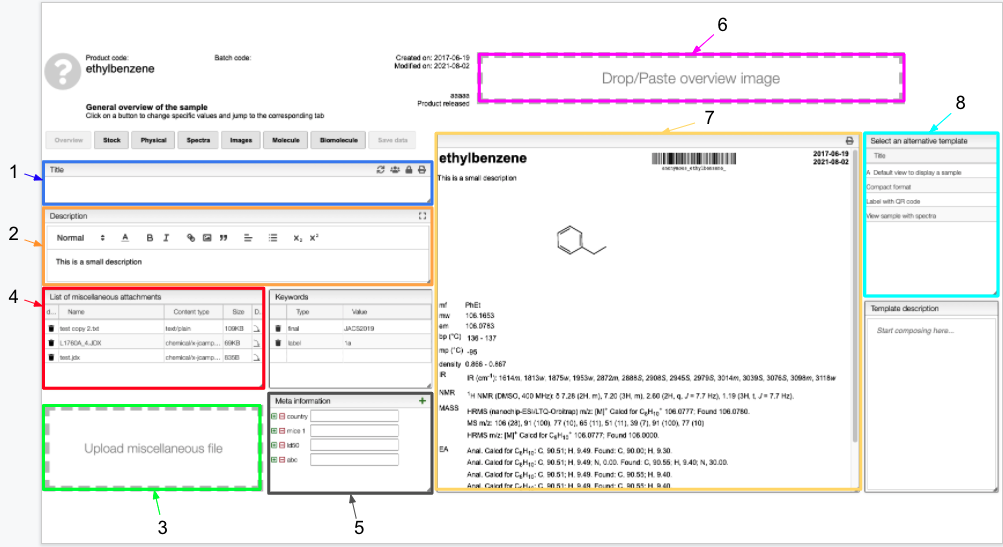
- Add a title that will appear in the final report (in the default view). This tab appears in all views proposed by the
Open/edit sampletile. - Add a description that will appear in the final report (in the default view).
- Upload miscellaneous files linked to your sample.
- List of the miscellaneous files uploaded. You can download those files by clicking on the
 button.
 - Meta information related to your sample.
- Drop/paste an image of your sample (e.g., leaf, plant).
- Overview of the report.
- Change the format of your report. Predefined templates are available, but you can also create a report with your own preferences.
More information about title tab.
Title tab
The title tab appears in all the views proposed by the Open/edit sample module. When you write something in this tab, it will automatically be updated in the report, but also in the Title tab of the other views.
Four icons are displayed on the top right of the tab:
 allows you to reload the data from the server. The modifications you did are locally stored until you click on
 Save data. At this point, the modifications are stored in the server. If you did not save your changes before reloading, you would lose them and come back to the latest version saved. When you click on the icon, a tab will appear to confirm your action and avoid any unwanted loss. allows you to manage the access to the sample information. You can either select or unselect an existing group or add a new owner using an email address or a group name. The new owner would be able to edit the information about the sample.
 gives you access to the security record information about the sample, such as the creation and last modification dates and the name of the owners.
 allows you to print the report in a format corresponding to the template selected in the
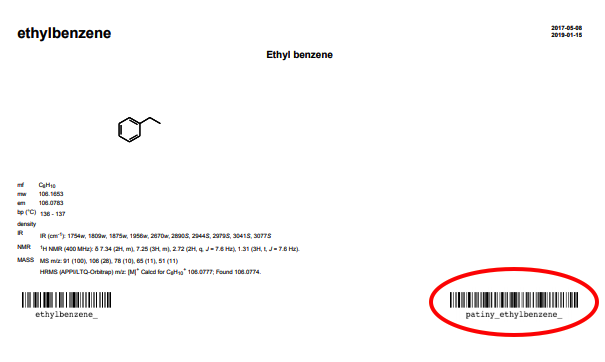
 Overviewview. The report will contain a barcode that represents this specific sample.
You can add meta information related to your sample. To add or remove an entry, use the  buttons and enter the parameter name. This meta information will appear in the table of contents on the Home Page. From the Home Page, you can search for your sample by its meta information. (The
 Keywords tab has the same functionality, but the Meta information tab is preferred.)
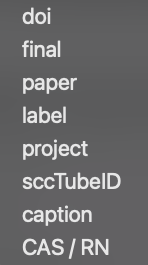
Keywords include the following fields:
The CAS/RN field is highlighted in red if the CAS number is not valid. Otherwise, it will be highlighted in green. In case the CAS is valid, you can click on the lookup button  in the
 rn column to retrieve the commercial information from a reference database.
Do not forget to save your data on the server. If you reload from the server using without saving your data, you will lose your changes.
When you want to print your report, you can select a different format from the select an alternative template tab. The report view is automatically updated. The produced report will contain a barcode representing the specific sample.